License Key rules
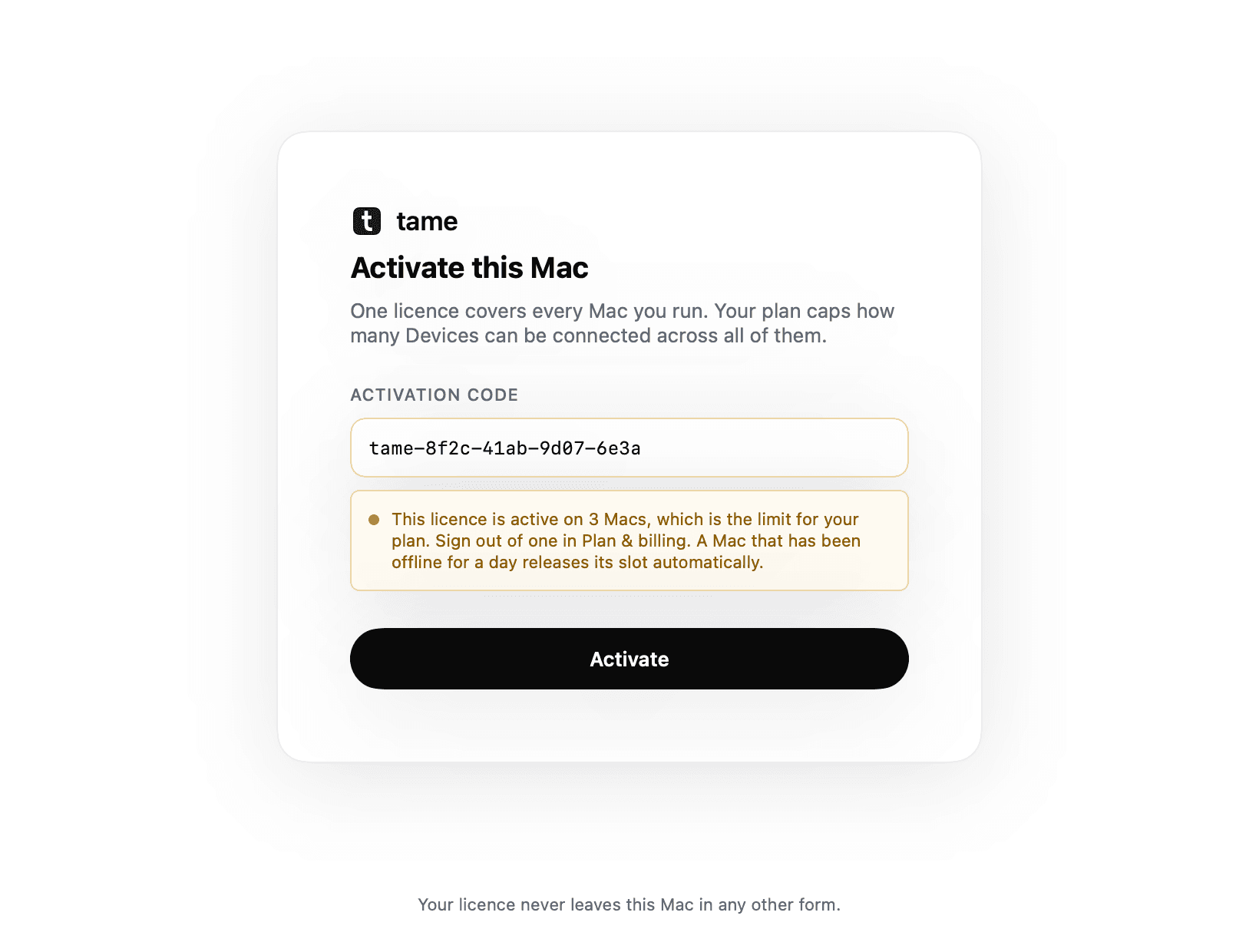
Your Workspace has one License Key for its plan allowances. Each activated Mac checks it locally.
How many Macs#
| Plan | Macs at once |
|---|---|
| Solo | 1 |
| Rack | 2 |
| Studio | 5 |
| Agency | 10 |
More than one is normal at scale: a rack outgrows one Mac's USB bandwidth long before it outgrows a plan.
Leases, not permanent claims#
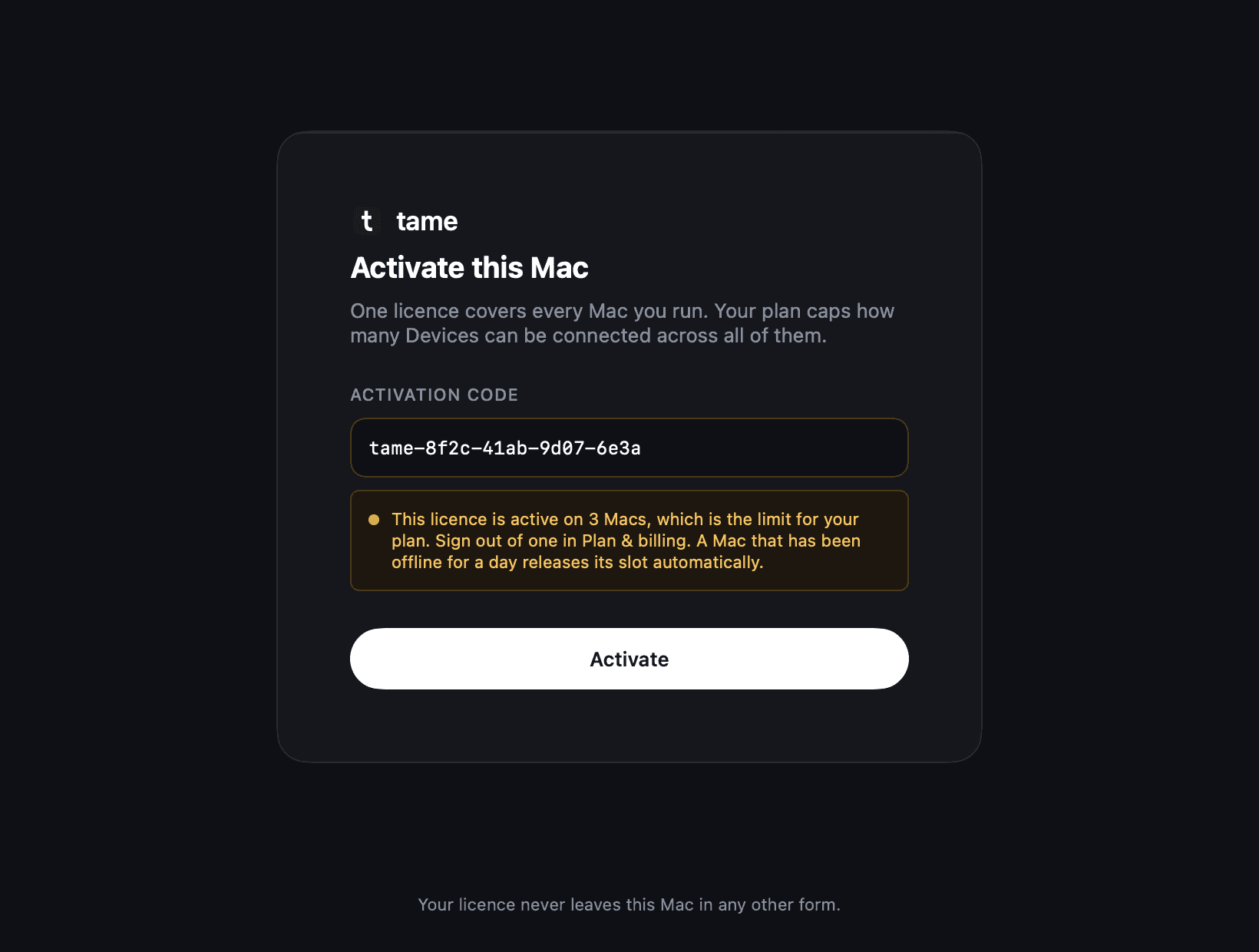
Each Mac holds a lease rather than owning its slot. A Mac that dies, gets reimaged or replaced frees it on expiry, which is deliberately not a support ticket.
Device allowances#
Your plan's Device allowance applies across your activated Macs. Adding another Mac does not increase the Workspace's Device allowance.
Offline checks#
Your Mac can verify its License Key without contacting the licensing service.
If a Mac is lost#
Its lease expires and the slot returns. The key carries allowances and nothing else: it cannot read your Content Library and cannot sign in as you.
Release or move a Mac#
As the Workspace Owner, open Plan & billing, find Macs using this licence, and choose Release Mac beside the Mac you want to disconnect. Confirm its name before releasing it. This remains available if payment fails or the plan is inactive.
The Mac stops at its next licence check and asks for activation again. To move it to another Workspace, enter that Workspace's activation code in the Desktop App. Use Release Mac for one Mac. Replace activation code disconnects every Mac in the Workspace.