Warmup settings
Open Warmup and start with Defaults for all Devices above the queue. Choose Edit defaults to set daily Session length, active hours, browsing, engagement and Warmup around Posts in one place. Section headers open from anywhere on the row, including their text and empty space.
Defaults are shared within the selected Client and across its Macs. New Devices start with the saved rhythm. Apply daily rhythm to existing Devices also replaces existing Device rhythm settings while preserving Account overrides, schedule inclusion and paused schedules. Saving never starts a Session.
Session preferences work as one bundle. Accounts with Follow shared Session defaults enabled use the shared duration, browsing, engagement, stop date and pre/post timing. Turn it off to give an Account its own bundle; blank fields in a custom bundle use automatic behavior. Resetting preferences follows shared defaults again. Macs apply saved changes on their next connection.
Find a Device, then choose an Account for its effective settings, niches and activity.
In the Web App, expand an Account to see Overview, Settings and History. Only one Account is expanded at a time. Overview summarizes its plan and offers immediate Sessions; Settings holds its effective values and niches; History shows reported activity. Use the arrow keys to move between tabs when navigating by keyboard.
Device defaults apply to Accounts following that Device. An Account override changes only that Account. Each value says which one it uses.
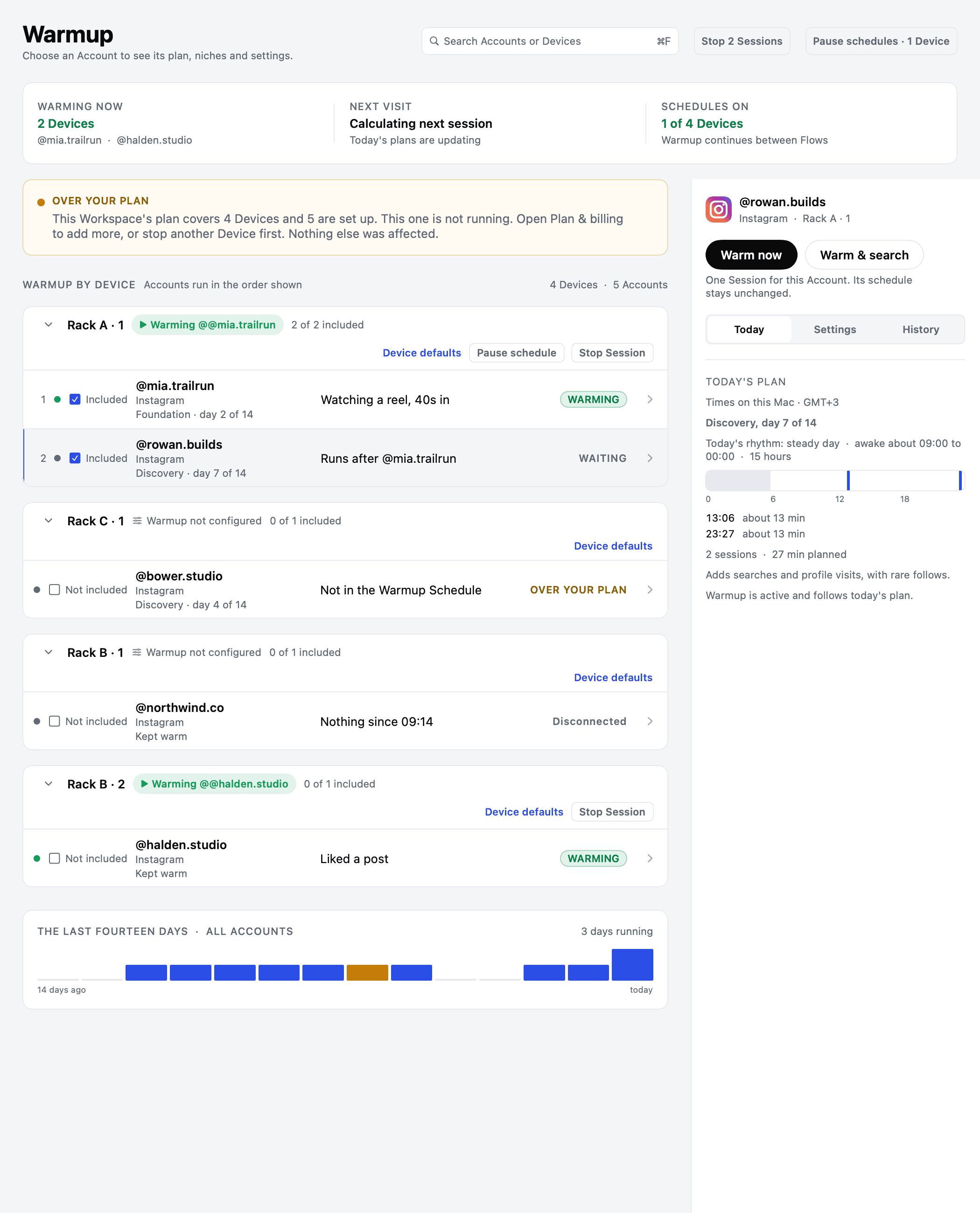
Start scheduled warmup#
Scheduled warmup is paused by default. Including an Account chooses who will participate; starting the schedule turns the planned work on.
Choose the Accounts
In the Desktop App, select Included beside each Account you want to warm. In the Web App, open Device defaults & Accounts and select them.
Review the Device defaults
In the Desktop App, open Device defaults beside the Device name. In the Web App, Device defaults & Accounts opens a schedule dialog. Select Accounts, review defaults and check the summary before saving. Existing Account overrides stay in place.
Start the schedule
Press Start scheduled warmup. The Desktop App performs the included Accounts' planned Sessions while the Mac and Devices are available. Each Account has its own plan, and Accounts sharing a Device take turns.
Pause schedule prevents future scheduled Sessions and lets a running Session finish. Use Stop Session to request a stop of the current Session. Stopping one Session does not turn off the schedule.
Change one Account's settings#
In either app, select an Account to open its detail below the row. Choose Settings → Customize Warmup. The editor has three sections:
- Daily Warmup: Session length, active hours and an optional end date.
- Browsing & niches: browsing source, search frequency and engagement.
- Around Posts: independent Warmup minutes before and after publication.
Only one section opens at a time. Advanced daily rhythm and engagement stay collapsed until needed. One Save (Web: Save changes) submits the whole form, including edits in sections you closed.
Unchanged settings follow Device defaults. Choose Reset defaults to clear this Account's Session preferences and restore inherited Device settings. Save the reset in the Desktop App; the Web App sends reset requests immediately. Web changes remain pending until the Mac reports them. A partial request failure keeps the editor open and explains which changes were already requested.
What each setting does#
| Setting | Default | What it changes |
|---|---|---|
| Intensity | Standard | The amount and duration of activity. Gentle reduces it; Faster increases it |
| Days to full activity | 14 days | The ramp through the Warmup Phases. Choose 7 to 90 days |
| Daily Session limit | 10 | A ceiling, not a daily target. Choose 1 to 10; the day's actual plan varies |
| Niche search frequency | Sometimes | How often ordinary Sessions attempt a search using this Account's niches |
| Waking hours | 06:00 to 00:00 | The outer boundary for scheduled activity, using the Device Mac's local time |
Without an explicit Session length, duration varies with phase, intensity and the day's plan. A daily Session limit does not fix its length. Waking hours are a boundary, not an appointment to start at the same time every day.
In the Desktop App, Today shows the actual plan, its time zone and available progress. The Web App shows reported activity for the last 24 hours, and Schedule shows each Account's planned Sessions for today and tomorrow when Show warmup is on: the time, the length and whether each one is planned, due, running, done, cancelled, failed or missed. They are what the Mac last reported, so a Mac that is offline shows the plan it had when it went quiet.
Short Sessions and an end date#
Choose Customize Warmup → Daily Warmup for a Session length from 1 to 60 minutes. In Browsing & niches, choose Automatic, Feed only or Niches only. Niche-only browsing requires saved keywords, and it cannot be chosen for an Account with none. It defaults to 15 minutes when no length is given, and stops if a search fails. It does not silently switch to the ordinary feed.
Open Advanced engagement for likes and follows. These accept percentages from 0 to 100. These are chances per eligible watched item, not promised counts. Zero disables an engagement. Foundation does not follow. Leave a number blank to use automatic behavior.
Under Around Posts, Before posting and After posting have independent lengths from 0 to 60 minutes. Zero skips that visit. They use the Account's likes and follows, and they never search niches, whatever Browse says. These apply to manual, dated and recurring Posts on Instagram and TikTok, including MCP. Settings are read when execution begins. A failed pre-post visit stops publication; a failed after-post visit keeps the confirmed Post recorded and reports the browsing failure.
Set Daily Warmup ends (Desktop: Stop daily Warmup on a date) to a date and time, or choose 1 day, 3 days, 7 days or 14 days from now. You can end daily Warmup in fewer than 7 days. This is independent of the 7–90 day ramp. It stops new daily visits, while manual Sessions and scheduled Posts remain available. Clear the date to keep daily scheduling open-ended.
Saving these preferences does not enable a paused Device schedule or include an Account that was excluded. Use Start scheduled warmup for that.
Add niches and search now#
In either app, open the Account's Settings tab. Under Niches to search,
type a keyword such as trail running
and press Add. Remove a keyword with its remove control. The app accepts up
to 30 niches, each up to 40 characters.
An Account without niches can still browse its feed. Add at least one niche to enable Warm & search. Owners and Managers can edit niches in the Web App.
Change Search frequency in Customize Warmup → Browsing & niches. It applies to Automatic browsing. Visits around Posts never search:
| Choice | Meaning |
|---|---|
| Rarely | Half the default chance per Session |
| Sometimes | The default chance, adjusted for the Warmup Phase |
| Often | 2.5 times the default chance, capped at 60% per Session |
These are probabilities, not fixed search counts. Feed only skips searches; Niches only repeatedly searches saved keywords regardless of this frequency.
Warm & search requests one Session that attempts a search using the Account's saved niches. It works for Instagram and TikTok. It does not change the saved frequency or the ongoing schedule. A request is not proof of a successful search; watch the Session's activity for what happened.
Run one Session or change the schedule#
| Control | What it does |
|---|---|
| Warm now | Requests one immediate Session for this Account, using its effective settings |
| Warm & search | Requests one immediate Session with a niche search attempt |
| Stop Session | Requests a stop of the current Session |
| Start scheduled warmup | Enables ongoing planned Sessions for the Device's included Accounts |
| Pause schedule | Pauses future scheduled Sessions |
Immediate Sessions leave Account inclusion and schedule settings unchanged. They can start outside waking hours, but a busy Device cannot run another Session at the same time. The Desktop App also checks whether a Session would crowd a scheduled Post's Posting Window and explains the conflict.
When a Web App change takes effect#
The Web App sends instructions to the Mac. A pending message means the request was recorded; it does not mean the Device has started or the Account has changed. The displayed facts update when the Mac applies and reports the change. A disconnected Mac must reconnect first.
Device policy edits are versioned. If another surface changes the policy while you are editing, refresh and review the newer settings before saving again. Account assignment and ordering remain on Accounts.
Configure warmup with MCP#
An assistant connected through MCP can use the same controls:
list_accountsandlist_warmupfind the Account and its Device.set_account_nichesreplaces an Account's niche list. Send the complete list you want to keep; an empty list removes all niches. This tool accepts up to 30 keywords per request, each up to 40 characters, matching the apps.save_account_warmupsets the Account's overrides. Send the settings that should differ from the Device, orclear: trueto return to Device defaults.save_account_warmup_sessionreplaces the complete Session preference set, including minutes, browsing source, engagement percentages, pre/post minutes and an optionalendsAt. An empty object clears those preferences.start_account_warmupaccepts explicitsessionOptionsfor one Session, including a 1–60 minute niche-only visit. Omit them to use saved preferences.withSearch: trueseparately requests a search attempt in an ordinary visit.find_request_statusreports whether the Mac applied or refused a request.list_activityreports actual completed Sessions and their causes.
These instructions require the appropriate Role and reach the Mac on its next check-in. They do not move the Account to another Device. Check reported activity to confirm execution.
See Automate with MCP for complete carousel, music, scheduling and 15-minute niche examples, plus current limitations.