Quickstart
A Mac and one iPhone to a warming Account. About 20 minutes, most of it the phone, and most of it one time only.
Before you start#
| A Mac | macOS 14 or later, Apple silicon |
| An iPhone | iOS 16 or later, dedicated, not your personal phone |
| A cable | A data cable. Charge-only cables look identical and are the most common first hour problem |
| An Apple account | Free or paid. Step 2 |
Step 1. Create your Workspace#
A Workspace is your side of tame: your phones, Accounts, content and plan.
- Sign up at Create a Workspace. Email and password.
- Choose a plan. Solo covers one Device and eight Accounts.
- Copy the activation code from the download page. Valid 48 hours, one Mac.
Step 2. Choose your Apple account#
Apple requires the runtime on the phone to be signed. There is no unsigned path. This choice is expensive to reverse, so make it now.
| Free Apple ID | Paid Developer Program | |
|---|---|---|
| Cost | Nothing | About 99 USD a year |
| Certificate lasts | 7 days | A year |
| Phones you may register | 3 | Many |
| Ongoing work | A button per phone, weekly | None |
Trying it out: free is fine. Planning a rack: buy the membership. The three phone limit is Apple's and there is no way around it.
Either way, install Xcode from the Mac App Store and open it once. Not the Command Line Tools, which are a different thing with a similar name.
Free#
Xcode, Settings, Apple Accounts. Add your Apple ID, then create an Apple Development certificate. tame finds it in your Keychain from there.
Paid#
Create a Team Key in App Store Connect
Users and Access, Integrations, Team Keys. It must be a Team Key. Individual keys cannot use the provisioning endpoints.
Give it App Manager or Admin access
Anything less cannot register Devices.
Download the .p8
Apple lets you download it once.
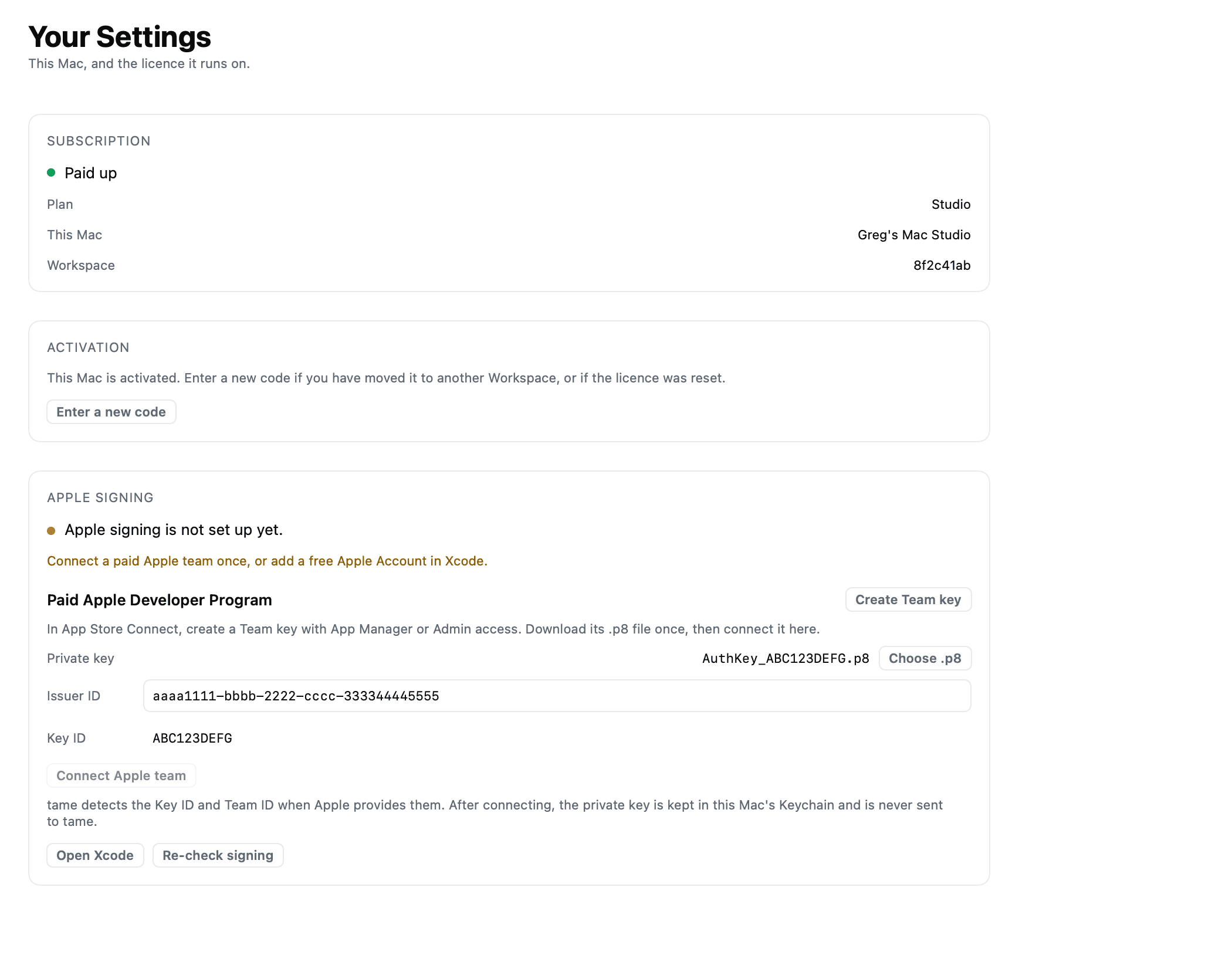
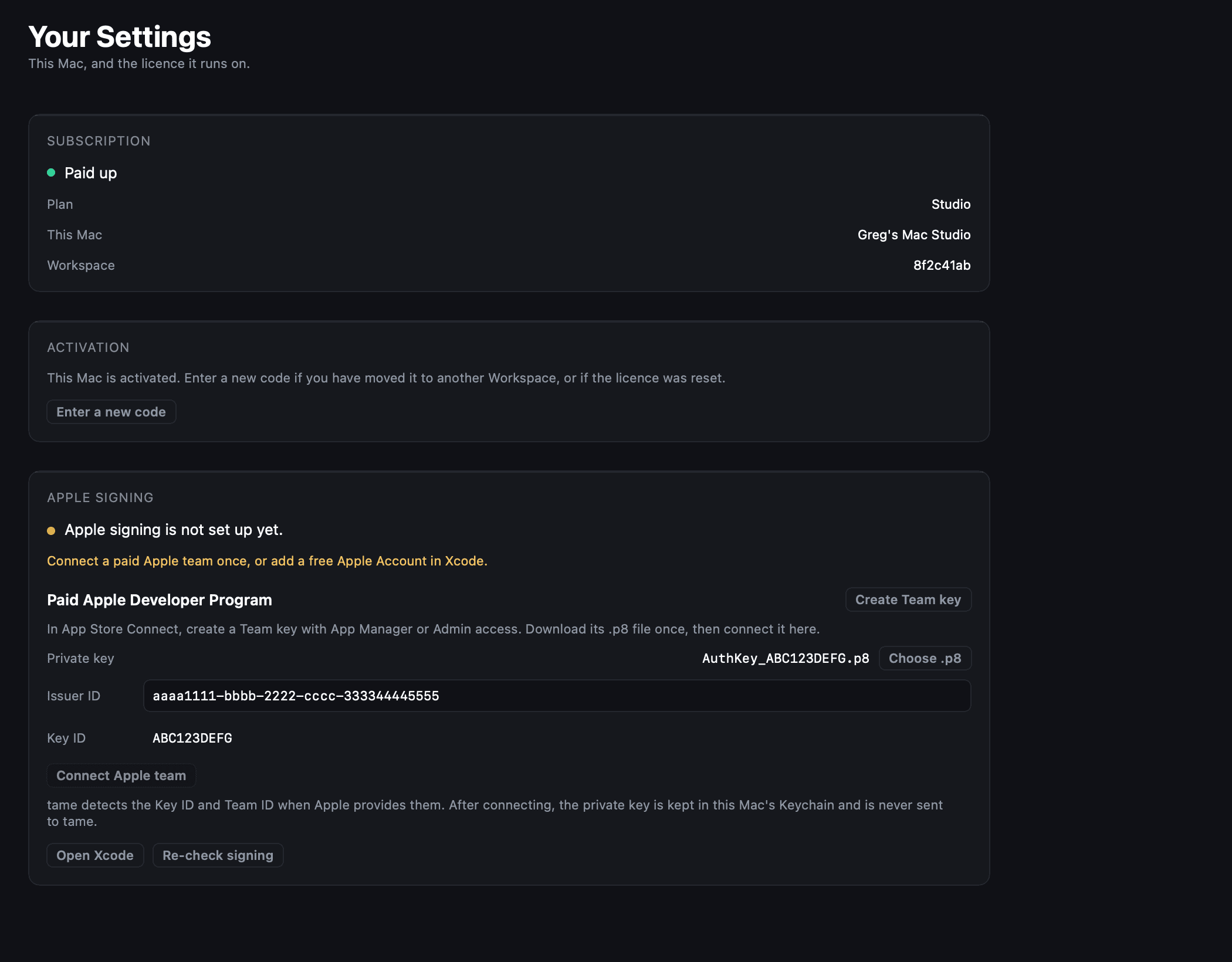
Add it in tame, Settings, Apple signing
Choose the file and paste the Issuer ID. tame reads the Key ID from the filename and usually detects the Team ID. Then it imports the key to your Keychain, so the file does not need keeping.
Step 3. Install the Mac app#
Download the Desktop App from the download page, open it, and paste your activation code. It checks for Xcode and a signing identity and names anything missing.
Everything tame needs to prepare your Devices is included in the Desktop App. No administrator password is part of setup.
Step 4. Prepare the iPhone#
Ten settings, with a restart between the first two. Reasons for each are on iPhone settings tame needs.
- Developer Mode on. Settings, Privacy and Security. The phone restarts.
- Enable UI Automation on. Same menu, and it only appears after that restart. The step people miss.
- Light appearance, Auto-Lock Never, no passcode, Reduce Motion on, StandBy off, Auto-Brightness off, brightness up, iCloud Photos off.
Step 5. Sign in on the phone#
Open Instagram or TikTok on the Device and log in by hand, two factor included. Do this before step 6: tame asks which Account a Device runs before it prepares it.
tame has no field for a password and never sees one.
Step 6. Connect and make it ready#
Plug in, unlock, tap Trust. The Device panel then offers one button at a time.
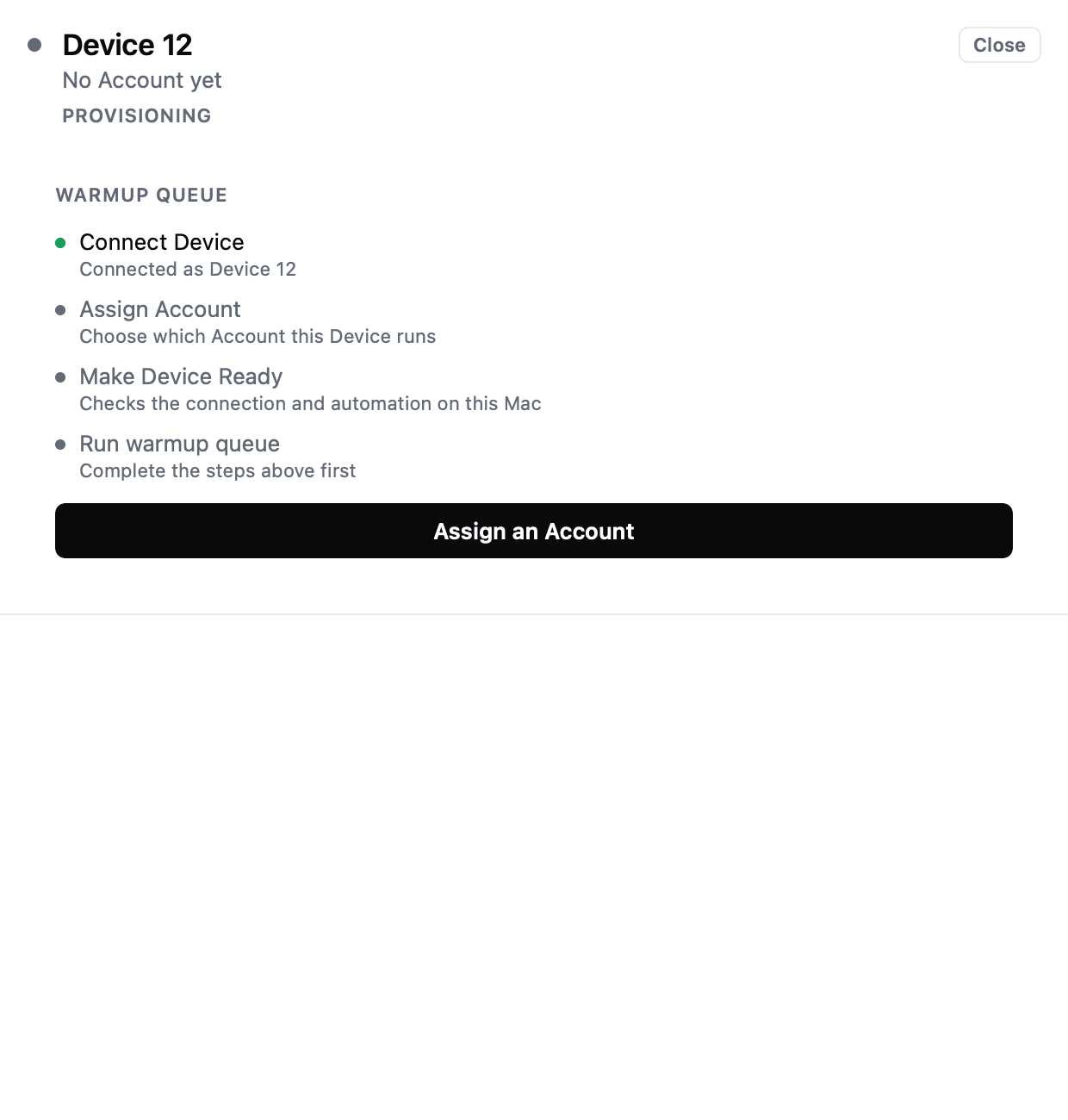
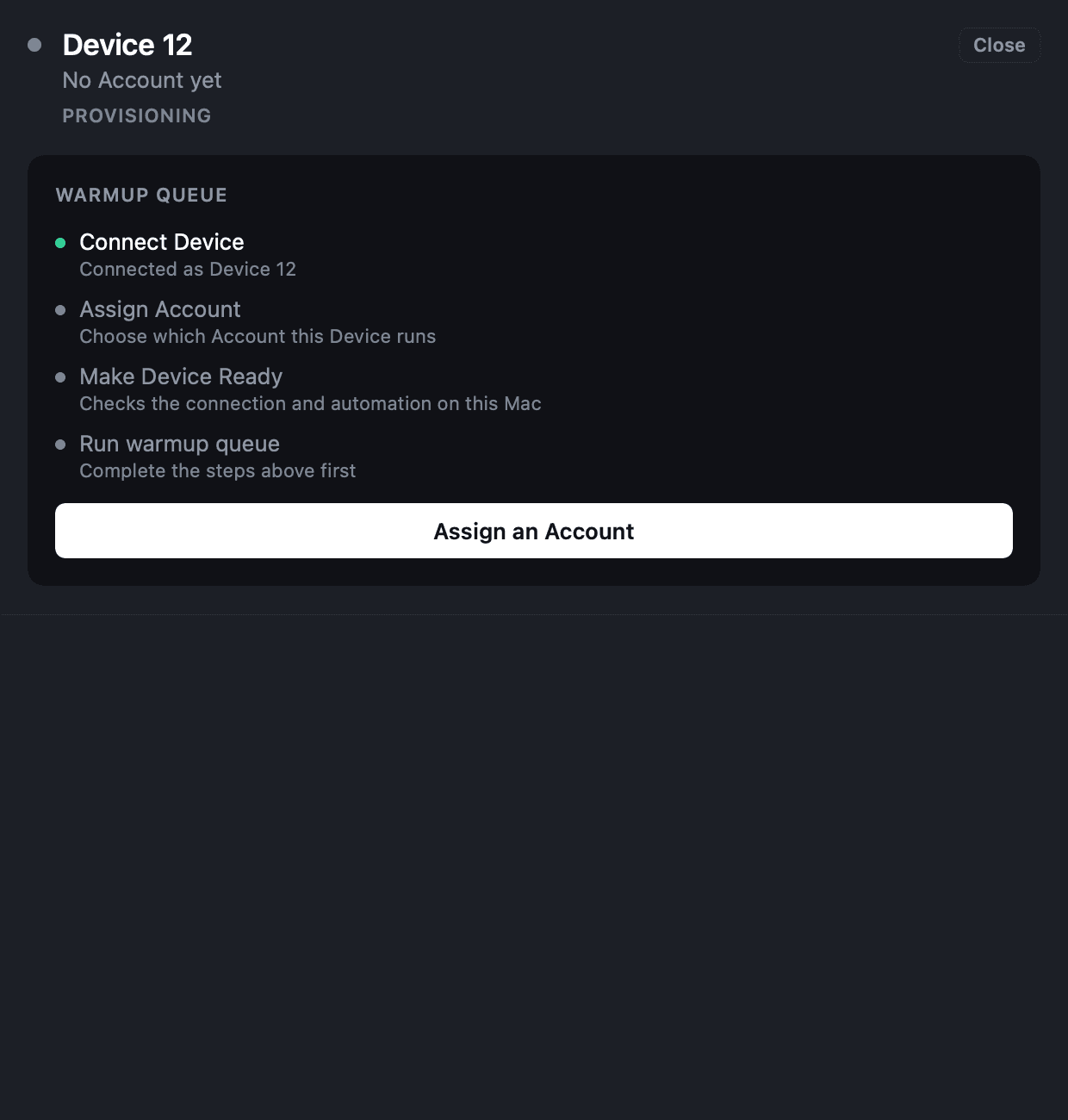
Make Device Ready installs the runtime. If it fails the button becomes Retry Ready check; unplug, plug back in, press it again. After it succeeds once, the phone prepares itself on plug-in.
Step 7. Start warming#
Open Warmup, select Included beside the Accounts you want to warm, then press Start scheduled warmup on their Device. The defaults are Standard, a 14-day ramp, a limit of 10 Sessions a day, and waking hours from 06:00 to 00:00 in the Mac's local time. The actual number and duration of Sessions vary.
Next#
What it does daily, and why the day matters more than the tap.
Posting Windows, and recurring Actions.
The six states, and what Needs attention means.
The failures we see most, and the fix for each.
Twenty minutes to your first warmup
One Mac, one iPhone, one cable. The Solo plan covers everything here.